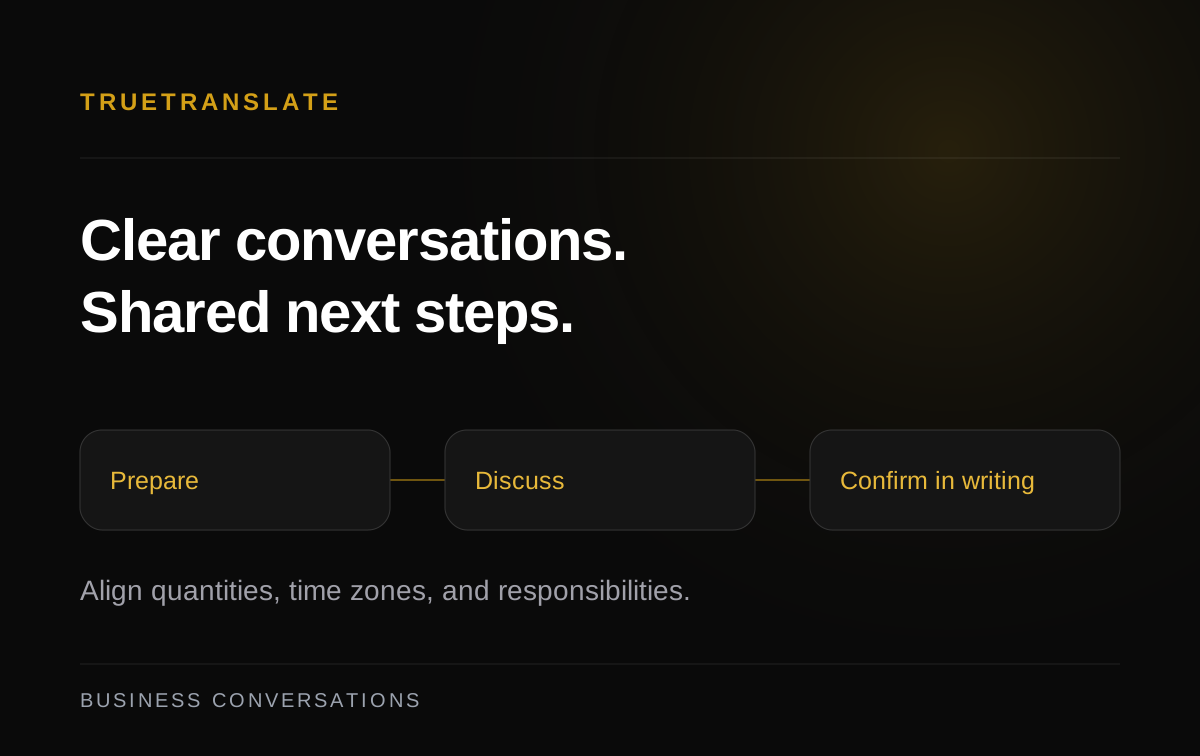

A realtime translator app helps you follow a conversation in another language as it happens. With TrueTranslate, you can translate an in-person conversation on one device, hear live translations during supported in-app calls, and read translated messages in chat.
Say you’re meeting a Vietnamese speaker at a theater. You need to find the right entrance, agree on a time, and make sure you both have the same plan. This guide shows when to use Live Translation, when to place a Personal call, and when to switch to chat. To follow along, open the TrueTranslate web app and try the English–Vietnamese example below.
How to choose the right realtime translator mode
Start with where the conversation is happening and what you need to get out of it. A quick question at a station works well on one shared device. A back-and-forth conversation with someone elsewhere needs a call. Dates, names, and addresses are easier to check again when they’re in chat.
| What you need | TrueTranslate mode | What to check first |
|---|---|---|
| Ask a quick question face to face | Live Translation | Language direction, microphone, and speaker |
| Speak with one person remotely | Personal call | Each person's saved language and available call modes |
| Bring a third person into the conversation | Room Pro Call | Room type, host's Pro access, and remaining minutes |
| Confirm a detail you’ll need later | Translated messaging | Reading language, spelling, and exact numbers |
Language support is specific to each mode. If you see a language in chat, check that it’s offered in the call or Live Translation mode you intend to use as well.
Translate a face-to-face conversation on one phone
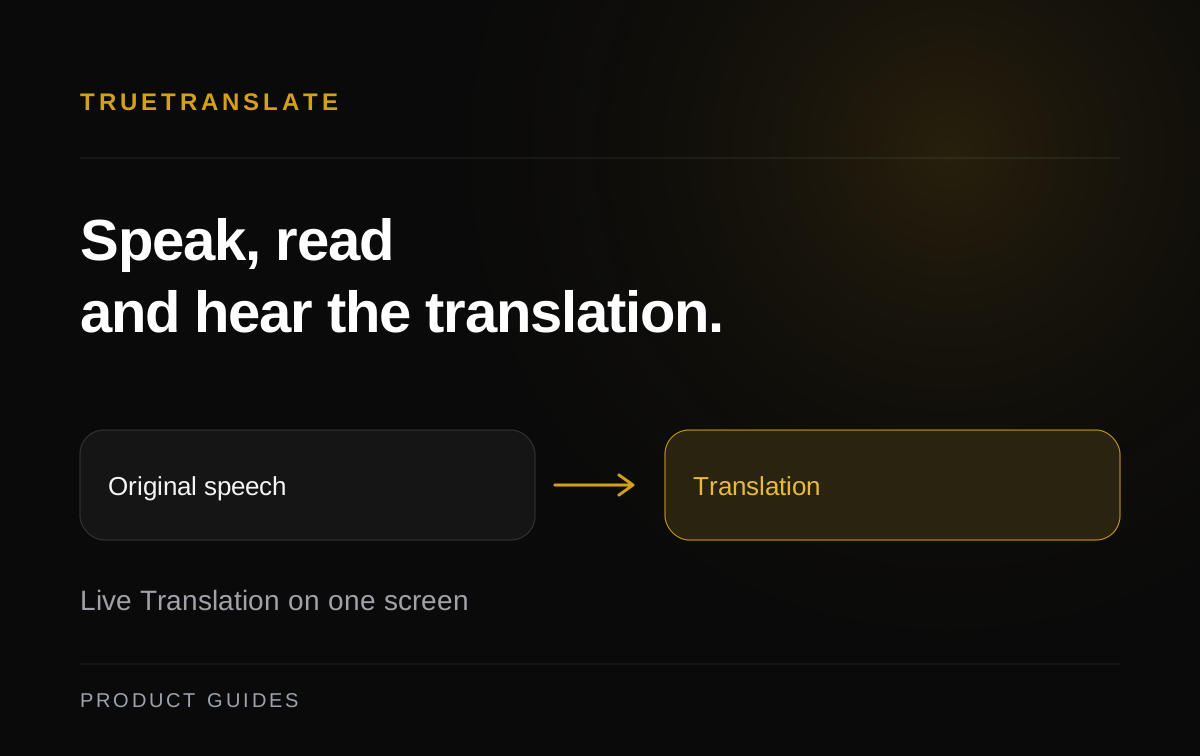
Live Translation gives you a place to speak and check the result on the same device. TrueTranslate shows the speech it recognized and the translated text in separate areas, with audio playback on the device. If the translation says “west entrance,” look at the recognized text first. That tells you whether the app heard “west” or the error appeared during translation.
Try a short English–Vietnamese exchange
- Open Live Translation, select Standard, and set the direction to English → Vietnamese.
- Enable the microphone and wait for the listening indicator. Ask one question and pause for the result.
- Check the recognized text, then show or play the translation for the other person.
- Switch to Vietnamese → English for the reply, and check any names or numbers you intend to use.
English · “Is the east entrance next to the ticket booth?”
Tiếng Việt · “Lối vào phía đông có nằm cạnh quầy bán vé không?”
Trả lời · “Đúng rồi. Quầy bán vé nằm bên trái lối vào.”
English meaning · “Yes. The ticket booth is to the left of the entrance.”
Example dialogue. Check the entrance and the position of the ticket booth in both directions.
If the room is noisy, move a little closer to the microphone and repeat the part that went wrong. Keep the sentence about the entrance separate from the one about the meeting time so the listener can answer each question. With Pro Live Translation, the app detects the source language and you select the target language from the list shown. Check that access is active and that the target language is listed before starting. The Live Translation guide covers Standard and Pro, including microphone controls and how to copy the translated text.
Use live voice translation on a call
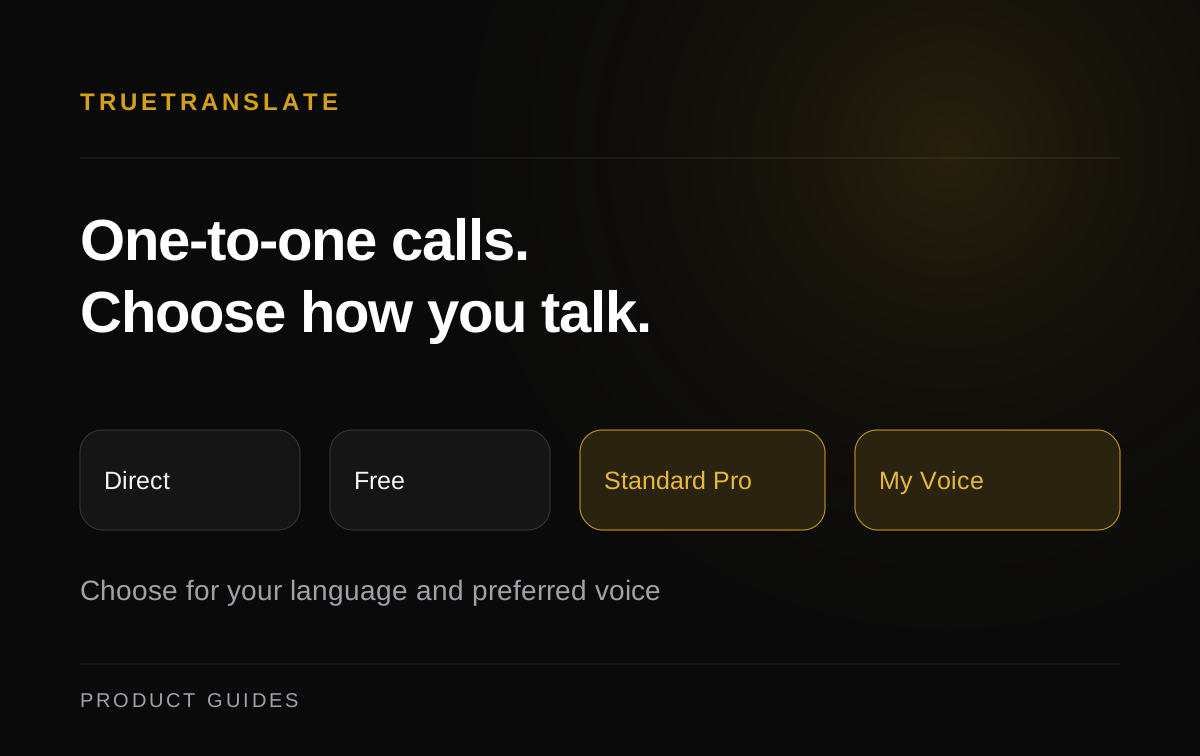
If the other person is across town, open a Personal conversation in TrueTranslate. Check the language saved for each account, then choose an available call option. Direct passes through the original voice for eligible same-language calls. The documented Free translated call supports English and Vietnamese. For Pro, check your language pair, access, and remaining minutes in the app before starting.
Once the call connects, try a simple opening question in each direction. Then break the plan into two turns. Say, “Let's meet at the east entrance,” pause, then add, “Can you get there by 6:40 p.m.?” Ask the other person to tell you which entrance they’re going to. Their answer gives you more to work with than a quick “yes.” For a detailed look at availability, see the guide to TrueTranslate’s one-to-one calls.
Bring one more person into the call
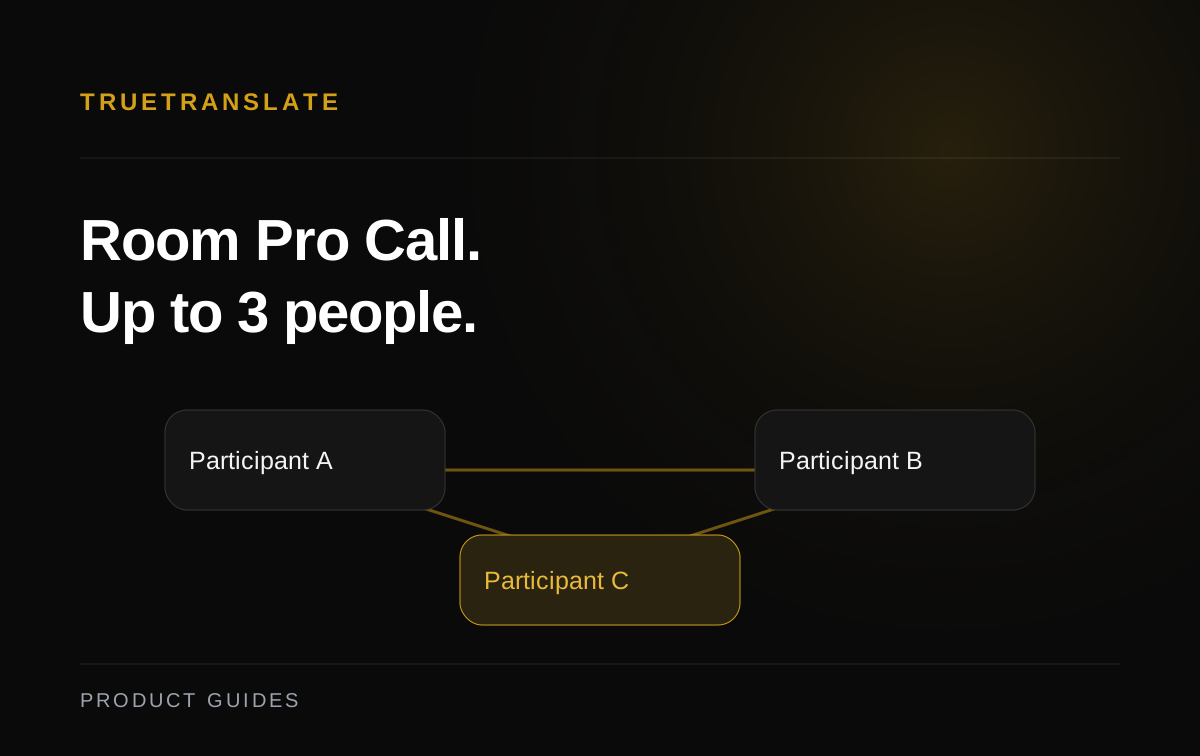
For a small group, TrueTranslate’s Room Pro Call supports up to three people including the host. The host checks access and minutes, creates the eligible room, and shares its invitation. Ask each person to confirm their language and do a short audio check. Speaking one at a time helps the group follow whose question is being answered. If you're inviting a third person to confirm the meeting location, agree on the single detail you need from them before everyone joins.
Use translated chat to confirm times, names, and addresses
After the call, send a short recap. In TrueTranslate, My language sets the language used to read translated incoming messages. App language controls the interface. A person can use an English interface and still choose to read messages in Vietnamese. The app keeps the original message, which can also appear while a translation is unavailable.
Try “Saturday, 6:40 p.m. local time, east entrance beside the ticket booth.” Send an address or map link in its own message if the venue has similar entrances. For work calls, use the same format for time zones, quantities, and part numbers. A short reply with the agreed time or item gives both sides a written reference. If the original text is still on screen, give the translation time to load and check the reading language before asking the other person to send it again. The translated messaging guide explains how this works for each reader.
Keep team follow-ups where everyone can find them
For a recurring project, post the agreed details in the relevant TrueTranslate Workspace channel. Members can read messages in their selected language and keep replies with the original discussion. A practical update names the person responsible, the next action, and the deadline with its time zone.
What to test in a translator app before you rely on it
A short test in the setting where you’ll actually use the app tells you how well it fits your conversation. Use both speakers’ normal pace and the devices they’ll have with them. Check the parts you’d have to act on after the exchange.
- Check both directions. Ask a question in one language and have someone answer in the other. Check the reply as carefully as the opening sentence.
- Include a detail you can verify. Use a place name, a number, or a request with a condition. Check whether “after 6:40” stayed different from “at 6:40.”
- Try a correction. Change one detail mid-exchange. In Live Translation, check the recognized text. On a call, repeat the correction and confirm it in chat.
- Test your connection and audio. Check microphone permission, playback volume, and whether the selected mode is available on each device. Try the connection you’ll use for the actual conversation.
Try a second test with a change of plan
Say, “The east entrance is closed after 7 p.m. Meet me at the main entrance at 7:10.” Ask the listener where and when you’ll meet. If they repeat the original place or time, restate the new address or landmark in one turn and the time in the next. If the recognized text is correct but the listener still sounds unsure, use a simpler phrase such as “the front doors on the main street” and ask them to confirm it.
Follow up with one short message containing the final time and entrance. To see where the problem started, compare what you said with the recognized text in Live Translation, and compare the written recap with the reply in chat. You can then decide whether to change the wording, adjust your audio setup, or stick to written confirmation for that detail.
Frequently asked questions
Does TrueTranslate work as an English–Vietnamese voice translator?
Yes. Standard Live Translation supports both directions on one device. For an in-app one-to-one call, the documented Free translated mode also supports English and Vietnamese, subject to device and feature availability.
Can two people use one phone to translate a conversation?
Yes. Take turns with Live Translation, switch the language direction as needed, and use the screen or audio playback to share each translation. Use a Personal call if you’re in different places.
Does Live Translation work offline?
Plan to use an internet connection. Standard relies in part on the device or browser's speech recognition, and Pro uses an online service. Check the microphone and connection before the first exchange.
Which language setting should I check first?
For chat, check My language in your account. For a call, check the participants’ saved languages and the offered mode. In Live Translation, check the direction or target language on the translation screen.